How to Erase Hard Drive PC: A Secure Guide for Donating or Selling

Ready to sell, donate, or recycle an old PC? Before you do, you have to make sure the hard drive is truly wiped clean. For this, you’ll need a method that completely overwrites your old data, making it impossible to recover. Simple file deletion or a quick format just won't cut it—that only hides the data, leaving it dangerously vulnerable.
If you’re on a Windows PC, the built-in 'Reset this PC' feature with the 'Clean the drive' option is your best bet. For macOS users, Disk Utility’s 'Security Options' will let you securely wipe the drive.
Why Simply Deleting Files Is Never Enough
Before we get into the step-by-step, it's crucial to understand a common—and critical—security mistake many people make. When you hit the "delete" key or even format an entire drive, you're not actually getting rid of your data.
All you're really doing is telling the operating system that the space is available for new information. Until new data gets written over it, your old tax returns, personal photos, and sensitive business documents can often be recovered with easily accessible software. This leaves you wide open to everything from identity theft to corporate data breaches.
For businesses, the stakes are even higher. Regulations like the GDPR have strict rules for how personal data is handled, and that includes its secure disposal. Simple file deletion is nowhere near compliant. To get a better handle on these responsibilities, you can dig into the specifics of GDPR compliance for data processing and erasure.
The Real Risk of Recoverable Data
The fundamental difference between just deleting a file and truly erasing it is at the very core of data security. The proper process, known as data sanitization, ensures that information is rendered completely unreadable, forever. If you want to dive deeper into the technical side of things, check out our guide on what data sanitization is.
Without this step, you're essentially leaving behind a potential goldmine for malicious actors.
The global market for data erasure solutions hit $1.29 billion in 2024 and is projected to jump to $1.48 billion in 2025. That's a massive 15.4% compound annual growth rate (CAGR). This explosive growth isn't surprising—it highlights the urgent, escalating demand for reliable ways to erase hard drives as cyber threats continue to rise.
Understanding this distinction is the first and most important step. This guide will walk you through the correct methods to ensure that when you erase a hard drive, the data is gone for good.
Deletion vs Formatting vs Secure Erasure At a Glance
To make it crystal clear, let's break down the common methods people use to get rid of data. This table shows why secure erasure is the only real choice when sensitive information is on the line.
| Method | What It Actually Does | Is Your Data Recoverable? | When to Use It |
|---|---|---|---|
| Simple Deletion | Marks file space as available but leaves the data intact on the drive. | Yes, easily with basic recovery software. | Only for clearing non-sensitive files you don't mind being found. |
| Quick Format | Wipes the file allocation table but doesn't overwrite the actual data sectors. | Yes, most data can be recovered. | Preparing a drive for reuse when data security is not a concern. |
| Secure Erasure | Overwrites every sector of the drive with random data, often multiple times. | No, data is permanently and irreversibly destroyed. | When selling, donating, recycling, or disposing of a PC. |
As you can see, anything less than a secure erasure is just leaving the door open for trouble. Now, let's get into how to do it right.
Choosing the Right Erasure Method for Your Drive
How you wipe a hard drive isn't a one-size-fits-all deal. The right method hinges entirely on the type of drive inside your computer, and getting this wrong is one of the most common pitfalls I see.
Your machine is running on one of two technologies: a classic Hard Disk Drive (HDD) or a more modern Solid-State Drive (SSD). Think of an HDD as a tiny, intricate record player, with spinning magnetic platters that store your data. SSDs, on the other hand, have no moving parts and use flash memory, much like a high-performance USB stick.
HDD vs. SSD Erasure: The Critical Difference
Because their underlying technologies are worlds apart, the way we securely erase them must be different, too.
For a traditional HDD, the gold standard is data overwriting. This process writes new, meaningless data—patterns of zeros and ones—over every single sector of the drive. While a single pass is often sufficient, more rigorous multi-pass standards like DoD 5220.22-M repeat the process several times for an even greater level of security.
But here’s the crucial part: never use that overwriting method on an SSD. It’s not just ineffective because of how SSDs manage data; it also causes significant wear and tear, actively shortening the drive’s lifespan.
The proper technique for an SSD is using the ATA Secure Erase command. This is a built-in function that instructs the drive's own controller to reset every memory cell to its original, factory-fresh state. It's incredibly fast, highly effective, and doesn't degrade the drive's health.
To make sure you're on the right track, this flowchart breaks down the only truly secure options for getting your PC ready for its next owner.
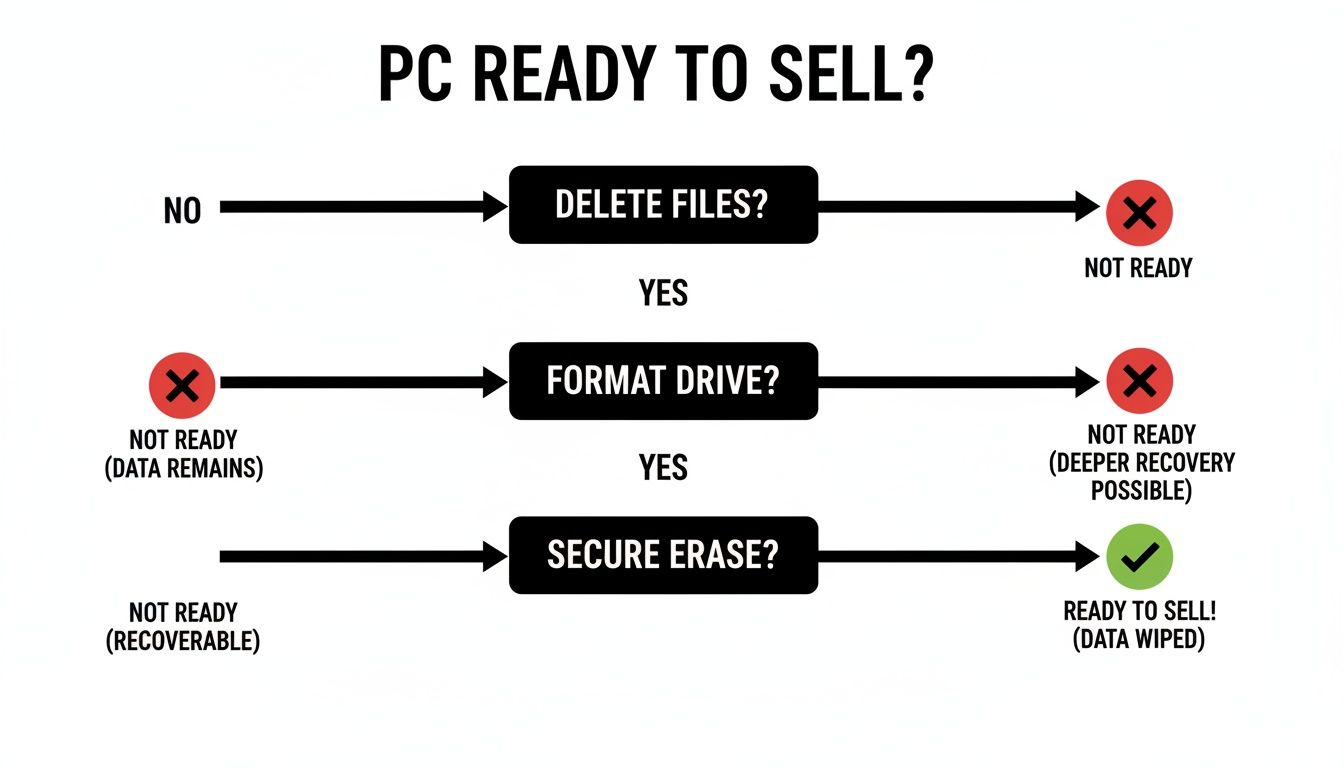
As you can see, simply deleting files or formatting the drive just doesn't cut it. A proper secure erase is the only way to guarantee your data is gone for good.
How to Identify Your Drive Type
Not sure what you’re working with? It's easy enough to check on a Windows PC.
- Press the Windows key + X and choose Task Manager from the menu.
- Click over to the Performance tab.
- Select your main disk (it’s usually C:). The drive type will be listed right there as either HDD or SSD.
Getting this first step right is non-negotiable. Picking the wrong erasure tool can either leave your data exposed or cause needless damage to your hardware, so this decision will guide everything you do next.
When you're managing dozens or hundreds of devices in a corporate setting, this process becomes a vital piece of a much larger strategy. Knowing the ins and outs of drive technology is fundamental to responsible IT asset disposition, which covers everything from device retirement to final disposal while ensuring total data security and compliance. You can get a deeper understanding by reading about what is IT asset disposition and seeing how it protects an organization's most sensitive information.
How to Erase Your PC Hard Drive with Built-In Tools
You don't always need to download special software to wipe a hard drive. Both Windows and macOS have powerful, built-in utilities that get the job done—if you know which buttons to press.
These native tools are actually quite straightforward. The real trick is knowing which specific options to choose. A wrong turn in the settings can give you a false sense of security, leaving your personal files easily recoverable. Let's walk through how to do it the right way on both platforms.
Securely Wiping a Drive on Windows
For anyone on a modern version of Windows (10 or 11), the "Reset this PC" feature is your best friend. While it sounds like a simple refresh, it hides an advanced option that performs a full data overwrite, which is exactly what we’re after.
Before you start, back up anything important to an external drive or cloud service. Also, it’s a good idea to plug your laptop into a power source. This process can take a while, and you definitely don't want the battery dying halfway through.
Here’s how to get it started:
- Head to Settings > Update & Security > Recovery.
- Under the "Reset this PC" section, click Get started.
- Now for the most critical step: You’ll be asked to "Keep my files" or "Remove everything." You must choose Remove everything.
Choosing "Keep my files" just reinstalls Windows and leaves all your personal data right where it is, completely defeating the purpose.
After that, you'll face another crucial choice: "Just remove my files" or "Clean the drive." The first option is just a quick format, meaning your data is still recoverable with basic tools. You need to select "Clean the drive."
This is the secure option. It performs a full wipe by writing over the existing data, making it incredibly difficult for anyone to get your old files back. It takes a lot longer—sometimes several hours, depending on your drive—but it's the only choice that ensures your data is properly gone.
Here’s a look at the screen where this all begins, straight from Microsoft's support documentation.
From here, just follow the path to "Remove everything" and "Clean the drive," and you can be confident your PC's hard drive has been properly sanitized.
Erasing a Hard Drive on macOS
On a Mac, the whole process is handled by a tool called Disk Utility, which you access from macOS Recovery mode. Just like with Windows, make sure you've backed up all your important files first.
Getting into Recovery Mode is the first step, and it depends on which kind of Mac you have:
- For Apple Silicon (M1, M2, etc.): Shut down your Mac completely. Press and hold the power button until the startup options window appears. Click Options, then Continue.
- For Intel-based Macs: Shut down your Mac. Turn it on and immediately press and hold Command (⌘) + R until you see the Apple logo.
Once the macOS Utilities window pops up, select Disk Utility and hit Continue.
Inside Disk Utility, you'll see a list of your drives. Find the main internal drive you want to erase—it’s usually named Macintosh HD. Select it, and then click the Erase button in the toolbar.
This next part is where you really need to pay attention. A dialog box will appear asking for a name and format (APFS is the modern standard). Look for the "Security Options" button. This is what turns a simple format into a secure wipe.
Clicking "Security Options" brings up a slider. This lets you choose just how thoroughly you want to overwrite the data.
For most people, moving the slider one or two notches toward "Most Secure" is more than enough. The most secure setting meets Department of Defense (DoD) standards, but be warned: it can take an incredibly long time to complete.
After you’ve picked your security level, click OK, then Erase. Disk Utility will start writing over every bit of your data, making sure it’s gone for good. Once it’s finished, you can either reinstall macOS or just shut down the computer, knowing your information has been securely wiped.
Using Third-Party Software for a Deeper Clean
The built-in reset functions in Windows and macOS are fine for most personal use cases. But when you’re dealing with a computer that held sensitive business data, client records, or anything governed by compliance standards, you need to bring in the heavy hitters. This is where third-party data destruction software comes in.
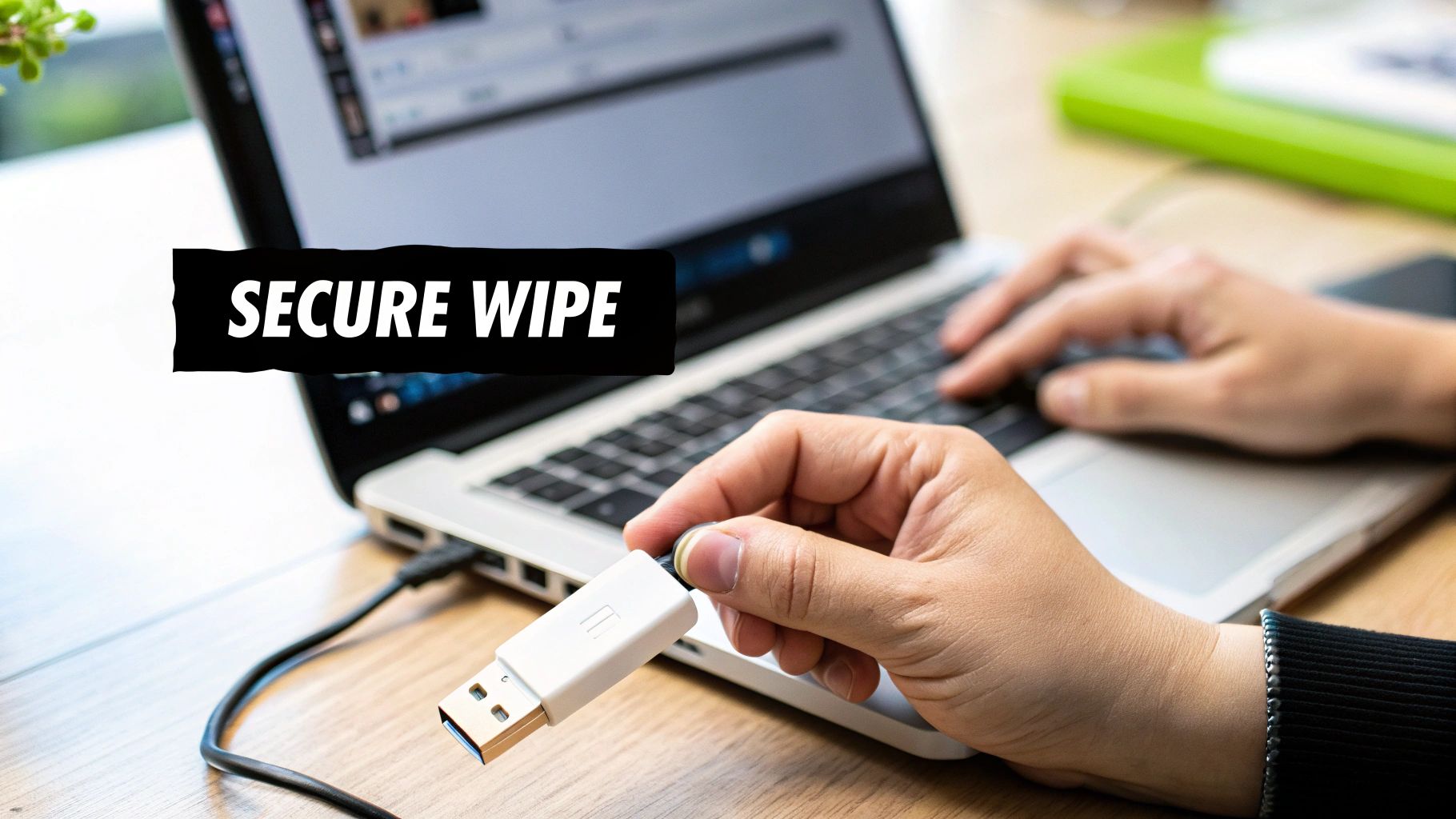
These specialized tools give you a much higher level of assurance. They work by booting from a separate USB drive, completely bypassing the computer’s own operating system. This allows the software to get its hooks into the hard drive at the lowest possible level, making sure no file is left behind, locked, or hidden by the OS. It’s the go-to method for older PCs that might not have modern secure erase features built-in, or for any company that needs an audit trail for its data destruction practices.
Why Choose a Dedicated Wiping Tool?
For years, the gold standard in free, open-source wiping tools has been DBAN (Darik's Boot and Nuke). It's an industry staple for a reason—it’s incredibly reliable for thoroughly wiping traditional HDDs. Think of it as a scorched-earth approach for your data; it meticulously overwrites every single sector on the drive, leaving absolutely nothing recoverable.
You'll want to reach for a tool like DBAN in a few key scenarios:
- Meeting Compliance Standards: If your business is subject to regulations like DoD 5220.22-M or NIST 800-88, DBAN provides wiping methods specifically designed to meet these tough requirements.
- Wiping Older Hardware: That old tower sitting in the supply closet probably has a reset function that barely scratches the surface. DBAN doesn’t care about the age of the PC or what OS it ran; it just works.
- Absolute Peace of Mind: When you absolutely, positively need to know the data is gone forever, a bootable tool is the only way to be certain. It removes any doubt that the OS could have interfered with the process.
Creating and Using a Bootable Erasure Drive
Getting started with a tool like DBAN means first creating a bootable USB drive. It sounds a bit technical, but the process is surprisingly simple and puts all the power in your hands.
All you need is a small, empty USB flash drive (even 1GB is more than enough) and a separate computer to set it up. First, download the DBAN ISO file, which is basically a disc image of the software. Then, use a free utility like Rufus to "burn" that image onto your USB drive. In just a couple of clicks, you've turned a simple flash drive into a powerful data destruction tool.
With your bootable drive in hand, the wiping process looks like this:
- Boot from the USB: Plug the USB drive into the computer you intend to wipe. As it starts up, you’ll need to interrupt the normal boot process to get into the BIOS or boot menu. This is usually done by pressing a key like F2, F12, or DEL. From there, you just tell the computer to boot from your USB drive instead of its internal hard drive.
- Launch the Software: DBAN’s interface is simple and text-based, no mouse needed. Once it loads, you can just type
autonukeand hit Enter. This is the easiest option, as it will automatically find and wipe all connected drives using a standard, effective method. - Select Your Method (Optional): If you need more control, you can enter the interactive mode instead. This lets you pick and choose which drives to wipe and select a specific erasure method, like the DoD short pass (3 passes).
A critical word of caution: Once you kick off the wipe, there is no going back. This is a permanent, irreversible process that will destroy everything on the selected drive. Triple-check that you've booted up the right machine and are targeting the correct drive.
Balancing Security and Time
One of the main choices you'll face is how many "passes" to run. A single pass writes random data over the entire drive once, and for almost any modern HDD, this is more than sufficient to render the original data unrecoverable.
However, older compliance standards like DoD 5220.22-M often call for multiple passes. A three-pass wipe, for instance, offers an exceptionally high level of security, but it will also take about three times as long to complete. For a large 1TB drive, that could be the difference between a few hours and an entire day.
For most corporate ESG or CSR initiatives involving the retirement of standard office equipment, a single-pass or three-pass wipe is perfectly adequate. This ensures your company's sensitive information is protected, turning that e-waste into a secure, ready-to-recycle asset that can go on to support a greater cause.
When Physical Destruction Is the Only Option
Software erasure is a powerful tool, but let's be realistic—some situations call for a more… definitive solution.
When you're dealing with drives that held classified corporate secrets, sensitive financial records, or data governed by strict rules like HIPAA, physical destruction is the only way to be 100% certain that data can never be recovered. In these high-stakes scenarios, there's simply no room for error.
This is also your go-to method for hardware that's failed or is physically damaged. If a drive won't even power on or can't be read by software, you can't wipe it digitally. The only way to securely erase data from a dead PC is to physically destroy the drive itself.
Methods of Physical Destruction
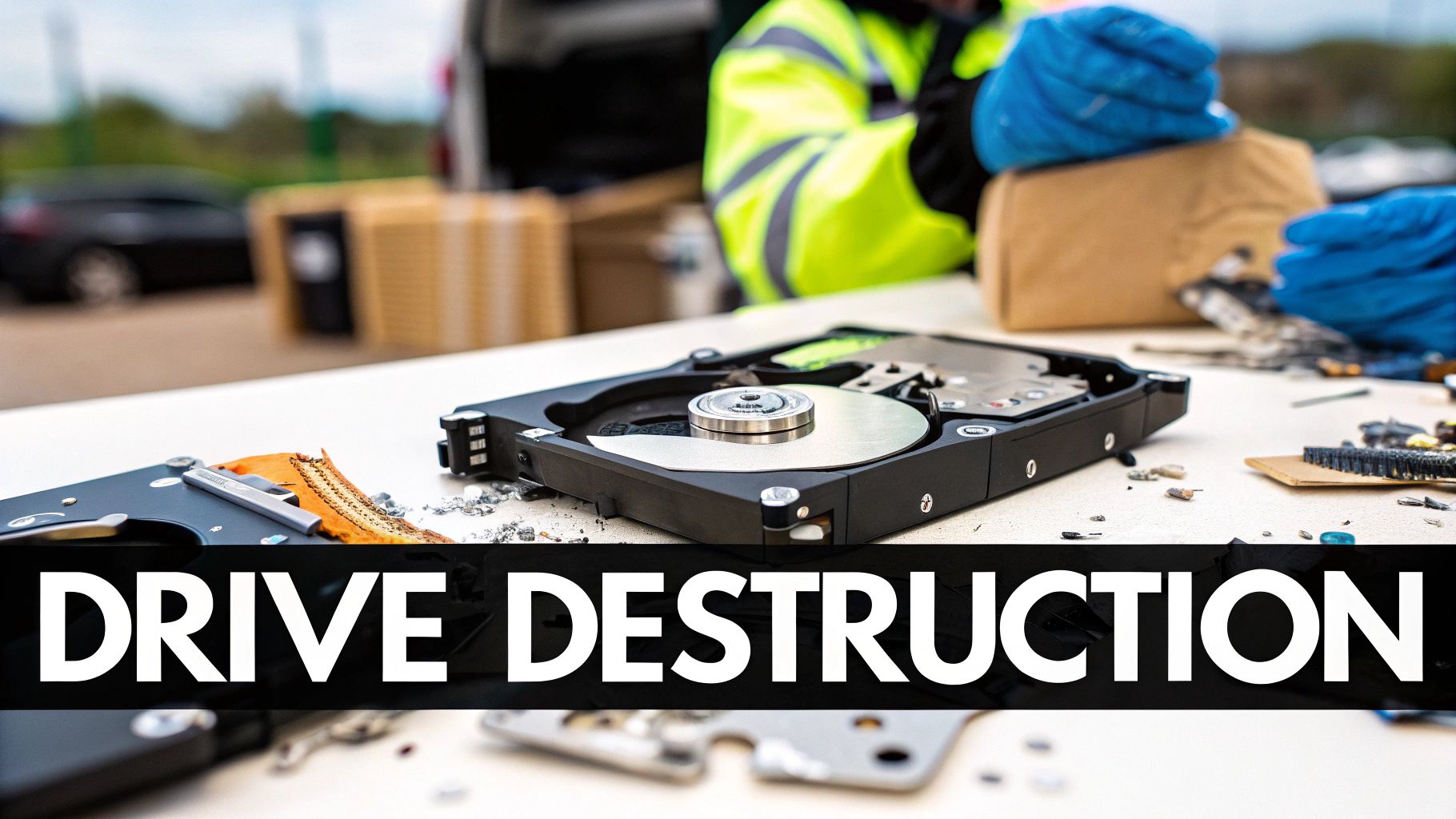
When we say "physical destruction," we're talking about something a bit more sophisticated than taking a hammer to your old equipment (though that might feel satisfying). Professional data destruction services use industrial-grade equipment to make data completely unrecoverable.
- Shredding: This is the industry standard. The hard drive is fed into a massive shredder that grinds it into tiny, irregular metal fragments. It's the most common and secure method for meeting tough compliance standards.
- Crushing: A hydraulic press applies thousands of pounds of force, bending and shattering the drive's internal platters where the data lives.
- Degaussing: This process uses an incredibly powerful magnetic field to scramble the magnetic charge on HDD platters, turning the data into gibberish. One crucial note: this is completely ineffective on SSDs, which don't use magnetic storage.
The demand for these services is exploding. The global market for hard drive destruction services was valued at $1.65 billion in 2024 and is expected to hit $5.05 billion by 2035. That growth tells you everything you need to know about how seriously businesses are taking data security. You can find more insights on this expanding market and its key drivers.
Why Professional Destruction Matters
For any business, especially those here in the Atlanta area, working with a certified e-waste recycler is non-negotiable. A professional service provides a Certificate of Destruction, which is a legal document that serves as your audit trail. It's proof that you’ve met your compliance obligations—essential for internal ESG reporting and protecting your company from liability.
Choosing the right partner means your retired IT assets are handled responsibly from start to finish. This process, known as secure IT asset disposition, ensures a documented chain of custody, compliance with data privacy laws, and environmentally sound recycling of the resulting materials.
If your organization in Atlanta needs certified data destruction, take a look at our services for secure hard drive shredding. We provide total peace of mind and ensure you remain fully compliant, every step of the way.
Recycling Your Old Tech for a Greater Good
Once you’ve successfully wiped your hard drive, you’re left with a clean slate—and a piece of hardware you no longer need. While tossing it in a standard recycling bin seems like the next logical step, you have an opportunity to make a much bigger impact.
Instead of just recycling, think about partnering with a professional e-waste service that connects your actions to a powerful social mission. This simple act of disposal can be transformed into a meaningful contribution.
Turning E-Waste into Hope and Restoration
Imagine your outdated technology doing more than just avoiding a landfill. Mission-driven recyclers turn your old devices into real, tangible support for community initiatives. It's a concept we call "Recycling That Restores Lives and Landscapes."
This approach gives your old tech a dual philanthropic impact. Here at GreenAtlanta.com, we’ve built our entire model around making sure your recycled electronics directly support two critical causes:
- Veteran Aid: Proceeds from refurbished and recycled materials help provide essential resources and support for local veterans.
- Reforestation Projects: We partner with environmental organizations to plant trees, contributing to vital reforestation efforts.
Your old tech can literally help house a veteran and grow a forest. It’s a simple, powerful way for any company to hit its ESG (Environmental, Social, and Governance) and CSR (Corporate Social Responsibility) goals.
The Corporate Advantage of Cause-Based Recycling
For businesses in the Atlanta area, working with a mission-driven recycler offers a clear advantage that goes beyond secure data destruction. It positions your company as a community leader and gives you compelling stories for your sustainability reports.
We offer services like free pickups for bulk disposals (50+ devices) and provide official documentation, including Plant-A-Tree certificates and Veteran Support Impact Reports. These materials offer tangible proof of your company’s positive social and environmental footprint. This isn't just recycling; it's about building a legacy of corporate citizenship.
A core part of this process is the certified data destruction that comes before any recycling. This service is in high demand, especially in North America, which has led the market since 2018. Strict data privacy laws are a huge driver; for instance, U.S. firms faced $12.7 billion in breach-related costs in 2023 alone. You can find more details on this trend by reviewing insights on the data destruction service market.
Making a Tangible Difference
This model isn’t just for corporations. Individuals can also get involved in “Recycle for a Cause” campaigns, knowing their old desktop or laptop is making a measurable difference. After every donation, we can provide personalized impact certificates, such as, “You planted 3 trees and helped 1 veteran.”
This simple gesture reinforces the direct connection between your decision and a positive outcome. It's a simple way to ensure that long after you securely erase your hard drive, the hardware itself continues to provide value. You can learn more about the entire journey by exploring what happens to recycled electronics in our detailed guide.
Choosing this path ensures your old tech doesn’t just end its life—it starts a new one by helping others.
Got Questions About Wiping Hard Drives? We've Got Answers.
When it's time to wipe a PC hard drive, a few questions always seem to pop up. Getting straight answers is key to making sure you're handling your data securely and not wasting a bunch of time. Let's dig into some of the most common ones we hear.
How Long Does a Secure Wipe Actually Take?
This is probably the number one question, and the honest answer is: it depends. A few factors really swing the timeline.
The biggest variables are the drive's size, its type (spinning HDD vs. a modern SSD), and the wipe method you choose. A quick, non-secure format might be over in a few minutes, but that's not what we're here for.
- For a traditional HDD, a single-pass overwrite on a 1TB drive can easily take several hours. If you opt for a more rigorous multi-pass method, like the DoD standard, you could be looking at a full day or even longer.
- For an SSD, the built-in Secure Erase command is a game-changer. It's incredibly fast, often finishing the entire process in under two minutes.
Can I Still Use the Hard Drive After Wiping It?
Absolutely. As long as you stick to software-based erasure, the drive itself will be perfectly fine. These tools are designed to destroy the data, not the hardware. Once the wipe is complete, you can install a fresh operating system or pop it into an enclosure to use as an external drive.
The only time a drive becomes unusable is when you resort to physical destruction—think shredding, crushing, or drilling.
Is It Really That Bad to Just Toss an Old PC?
Yes, it's a huge risk. A discarded computer, even a broken one, is a goldmine for anyone looking to scavenge for parts or, more importantly, your personal data. The PC might not boot up, but a savvy individual can easily pull the hard drive out and access it with another machine.
Never, ever just throw a computer away without first wiping or destroying the drive. And don't fall for old myths, either. Trying to wipe a drive with a household magnet is completely ineffective on modern hardware. We have a whole guide explaining why erasing hard drives with magnets doesn't actually work.
One common mix-up is the "factory reset." People often think it's the same as a secure erase, but it's usually not. A basic factory reset often just reinstalls the OS without truly overwriting your old files, leaving them recoverable. For a true wipe, you need to find the advanced option—often called "Clean the drive" or "Remove everything"—that performs a full data overwrite.
When your organization needs certified, secure, and responsible disposal for its IT assets, trust the experts. At Atlanta Green Recycling, we turn your e-waste into hope by supporting veterans and reforestation projects. Schedule your corporate electronics recycling pickup today.